Introduction
Welcome to this lab dedicated to the implementation of AR in unity. We will pass through differents steps, and build the game from scratch.
The Game
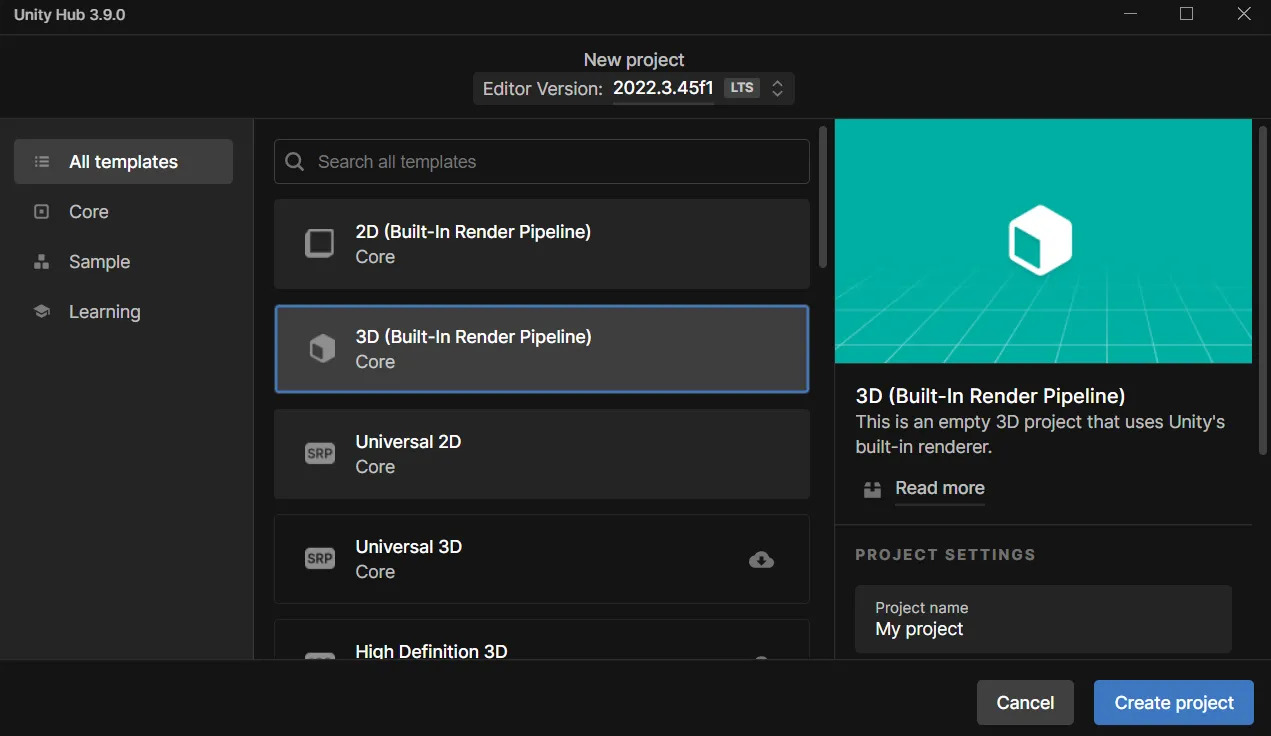
First of all we need to create a unity project and choose 3D :
After that, let’s get back to the unity project, and download the package AR foundation and XR plugin management and, in the samples, it will make the job easier for the implementation of the AR :
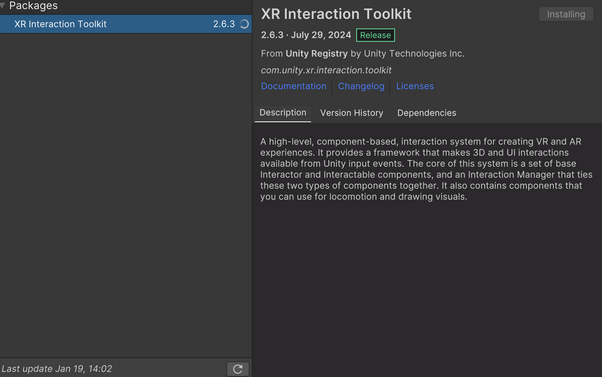
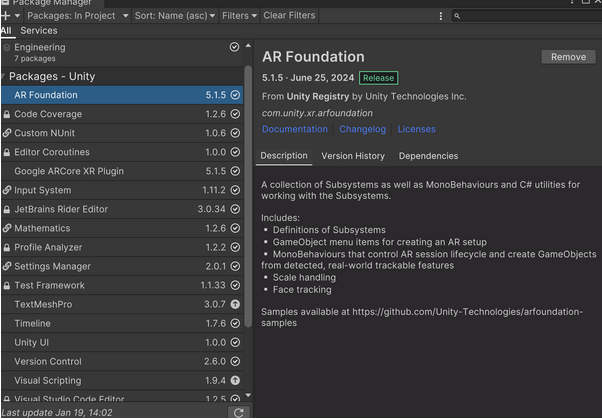
Then, we have to go to Edit -> Project settings to change one more thing, install the XR plug-in Management, and once done, click on the ARcore button which should be unchecked at the beginning.
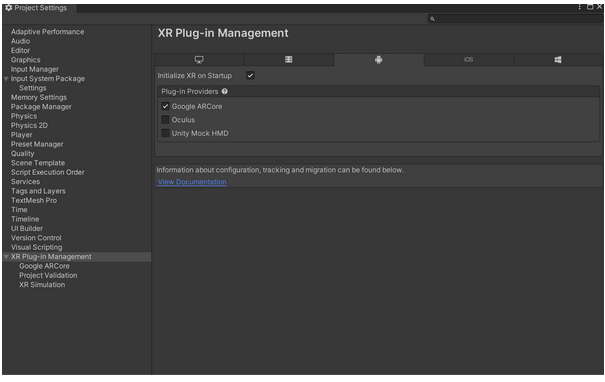
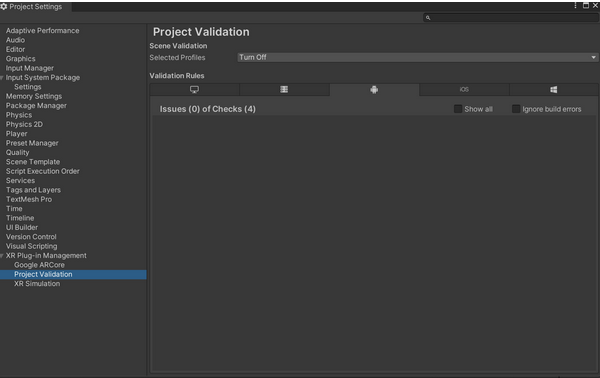
This should generate some errors that have to be fixed. To do so, go to Project validation and click on “Fix all”, if any error appears. If you have nothing, you can just continue.
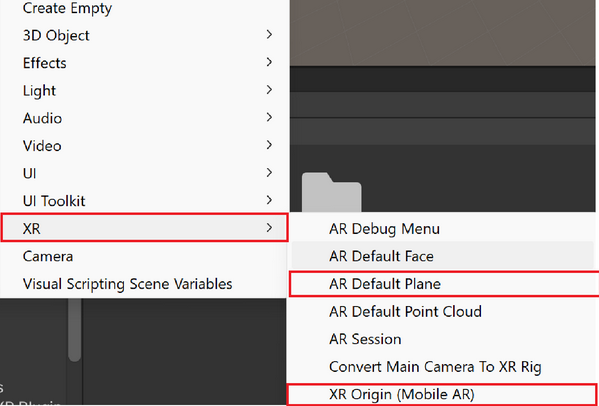
We’re now ready to create our game in AR. This will consist in a tap to place in android. First, let’s delete the main camera in the scene, and create the “XR origin”, as well as the “AR session”, then, to make the application recognize the floot, we’re gonna create a “AR default plane”
After that, we’re gonna create the prefab for the cube we want to place on the ground, so create a new folder in the assets, and create the prefab like that : 2 cubes, on is the child of the other, and the child, named here “Selection” is 1.2 bigger than the first one.
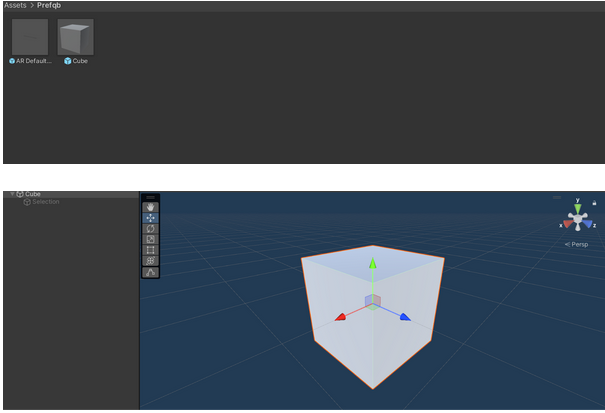
We want to create a material that is showed if we want to place the cube. To do so, you just create a material and drag it into the “Selection” cube.
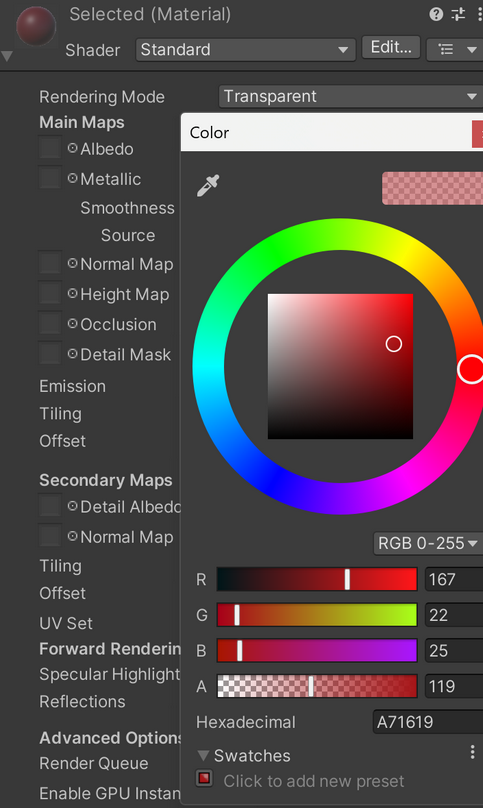
We have to add a few component on the prefab we’ve just created. Add the few elements on the screen, and put the XR origin where it is asked inside each of the script.
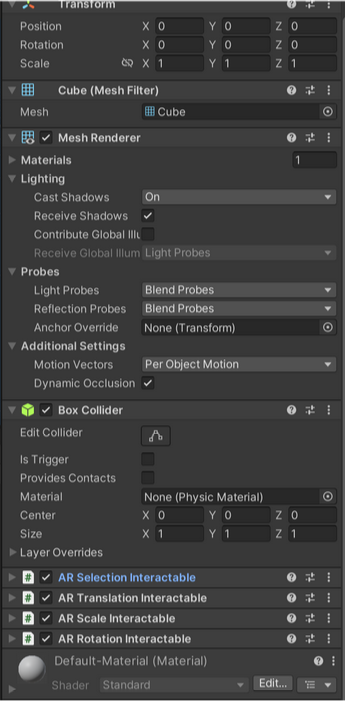
Then, we do the same for the XR Origin, as well as the main camera.
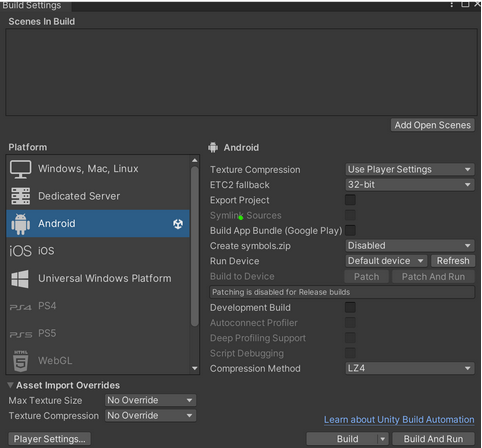
We just have now to build the project and we’re done ! Install the android build if not already done and build your game !